Square Face Icon Generator: Pixel Avatar Maker

Create pixel avatars with the Square Face Icon Generator.

How to use

  • Design your unique pixel character
  • Customize facial features, hair, and accessories
  • Choose from various color palettes
  • Export as PNG or ICO for your profiles

A pixel avatar page with a different personality

Compared with the stricter square-pixel page, this maker leans more toward character identity and less toward pure grid minimalism. That makes it useful for people who want retro energy without losing expressive accessories and stylized face details.

Best for

Gaming profiles, chat apps, retro portfolios, and community badges with more character detail.

What makes it useful

It bridges nostalgic pixel art and more expressive avatar design, so it works for both playful and personal profiles.

Quick tip

If your profile image appears in a circle, keep important facial details centered and away from the edges.
How to make an expressive pixel avatar

This pixel avatar maker sits between a strict 8-bit grid and a more flexible character creator. Use the grid language for the silhouette, then let the expression, hairstyle, or accessory carry the personality. That balance is useful for gaming profiles, community badges, chat accounts, and retro portfolios.

Keep the character readable

  1. Set the face position before adding details around the edges.
  2. Use a limited palette so the eyes and hair do not compete.
  3. Choose one accessory that remains identifiable at small sizes.
  4. Check the design against a light and dark background.
  5. Preview a circular crop before exporting the final version.

Which tool should you use?

Choose Square Pixel for a stricter, simpler grid. Choose Chibi Avatar for larger expressive features, or open the main editor when you need broader manual and AI-assisted editing.

Export checklist

PNG is the practical format for most profile services. Do not blur or smooth the image after export, because the pixel edges are part of the design. If the platform resizes the image automatically, make sure the face still has enough contrast to remain recognizable.

Ruffle compatibility and pixel-avatar troubleshooting

Pixel Avatar is a local Ruffle-powered maker with a broader retro character workflow than the stricter Square Pixel page.

  1. Wait for the local player to finish initializing before editing.
  2. Refresh once if the canvas is blank or the controls stop responding.
  3. Keep important details away from the corners if a platform uses a circular crop.

Use it for gaming profiles, retro portfolios, chat accounts, community badges, and pixel characters with more detail than a simple icon.

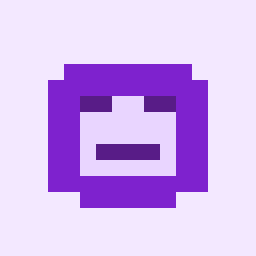
Example of a pixel avatar icon

Example pixel avatar output

Use this reference for retro gaming profiles, badges, and chat accounts where a limited palette and blocky silhouette are more important than fine detail.

Try the other makers too if you want a stricter 8-bit grid, a softer chibi face, a cat mascot, or a more geometric square avatar.